Fix PowerShell “execution of scripts is disabled on this system” error in CMD
I was automating a quick local build deployment last night. I wrote a simple batch file to call a PowerShell script that cleans up my temp directories before pushing code. I double-clicked the .bat file, and the CMD window instantly threw a massive block of red text at me.
If you're dealing with a cmd run PowerShell script error right now, your screen probably looks exactly like this:
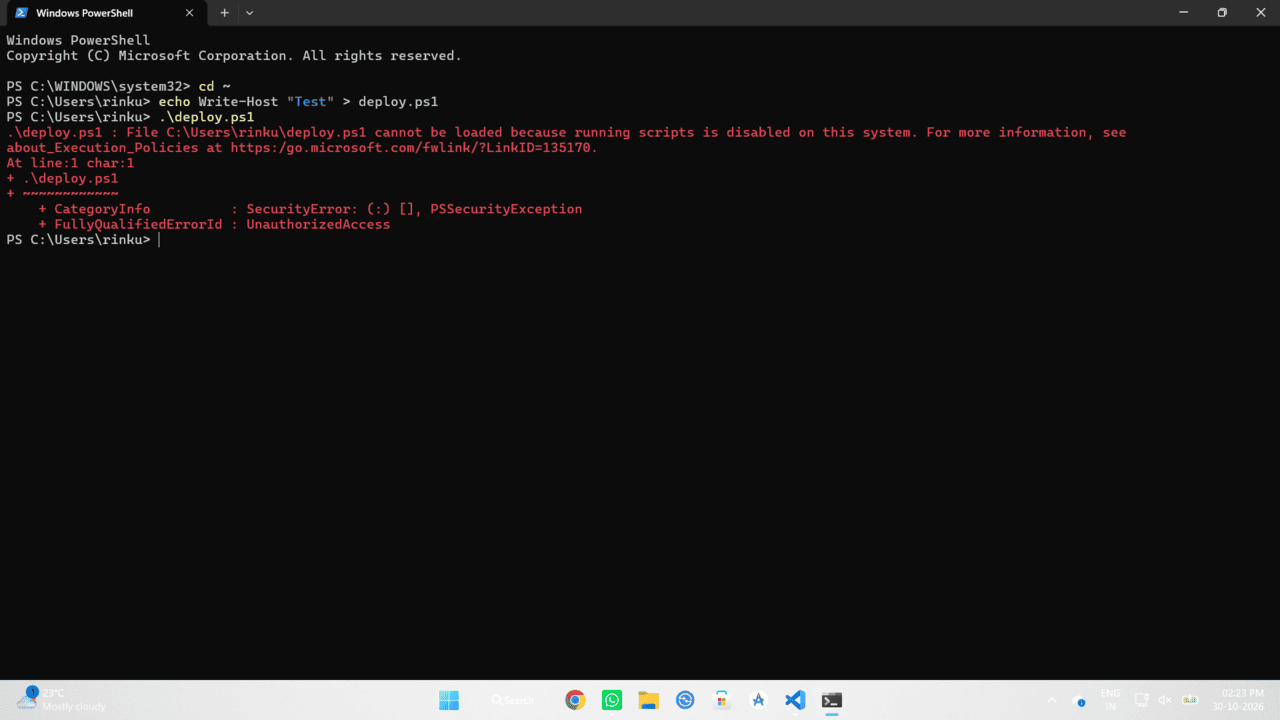
Why is Windows blocking my .ps1 script?
This isn't a bug in your code. Windows locks down PowerShell out of the box using a security feature called the Execution Policy. By default, the policy is set to Restricted. This means PowerShell operates strictly as an interactive shell. You can type commands manually, but it outright refuses to execute saved .ps1 script files to prevent malicious code from running in the background.
To fix the PowerShell execution policy disabled issue, we just need to tell Windows to loosen up its security rules. You have two options depending on your admin privileges.
Option 1: The Permanent Fix (Requires Admin Rights)
If you own the laptop or have administrator rights, you can change the global execution policy. I highly advise against using Set-ExecutionPolicy Unrestricted because it opens your system up to running absolutely anything from anywhere.
Instead, we use RemoteSigned. This allows scripts you write locally to run perfectly, but requires scripts downloaded from the internet to have a trusted digital signature.
Hit the Windows key, search for PowerShell, right-click it, and select Run as Administrator. Then type this command:
Windows will prompt you with a warning about changing the execution policy. Type Y (or A for Yes to All) and hit Enter.
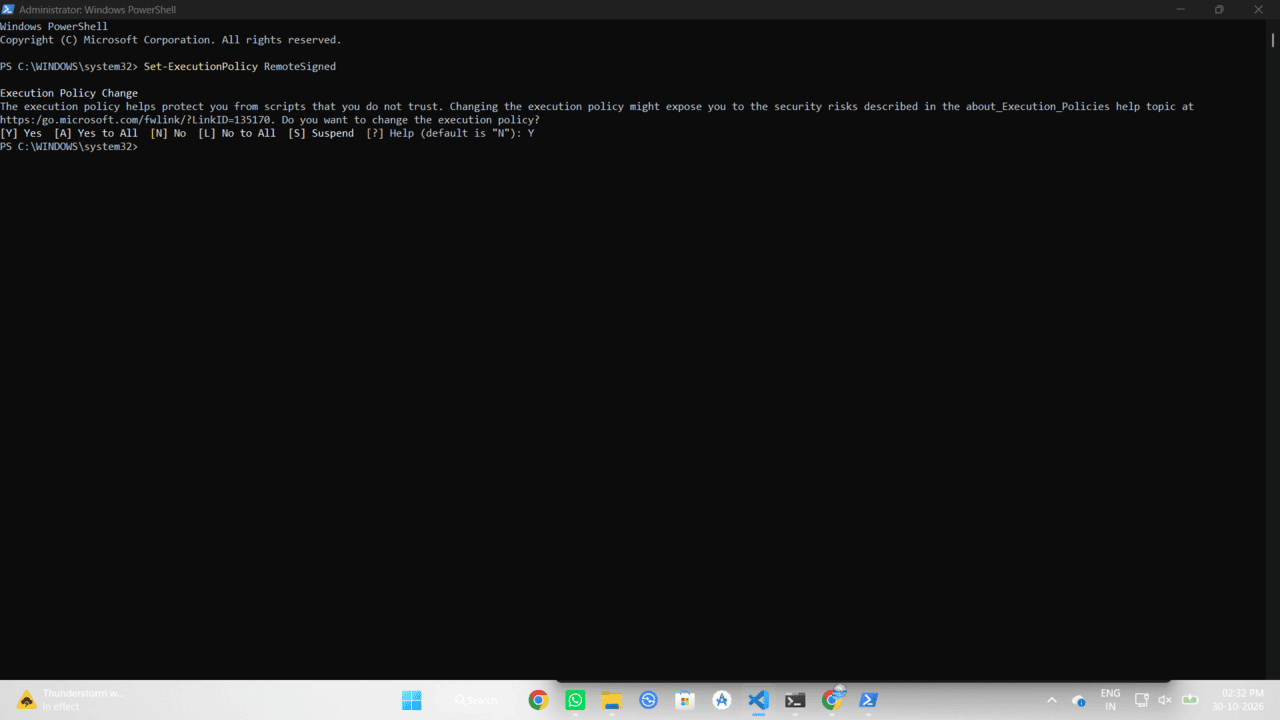
Close that admin window. You can now run your batch files or CMD scripts normally, and the PowerShell scripts disabled Windows block will be gone forever.
Option 2: The Bypass Trick (No Admin Rights Needed)
What if you're working on a locked-down company machine where you can't run PowerShell as an administrator? You can't change the global policy, but you can bypass it for the specific session.
You can run the script by passing an execution policy flag directly into your CMD or batch file command. Open your .bat file or your terminal, and run your script like this:
This tells Windows, "Just for this one specific command, ignore the restricted policy." It works brilliantly for local automation tasks on corporate environments without triggering admin UAC prompts.